
Nauroji Nagar Operators: Trip History Versus Route Replay Explained
Trip history is the per-trip record of when a trip started and ended, how far it went, and summary figures such as speed and idle time. Route replay is the map-based redrawing of t
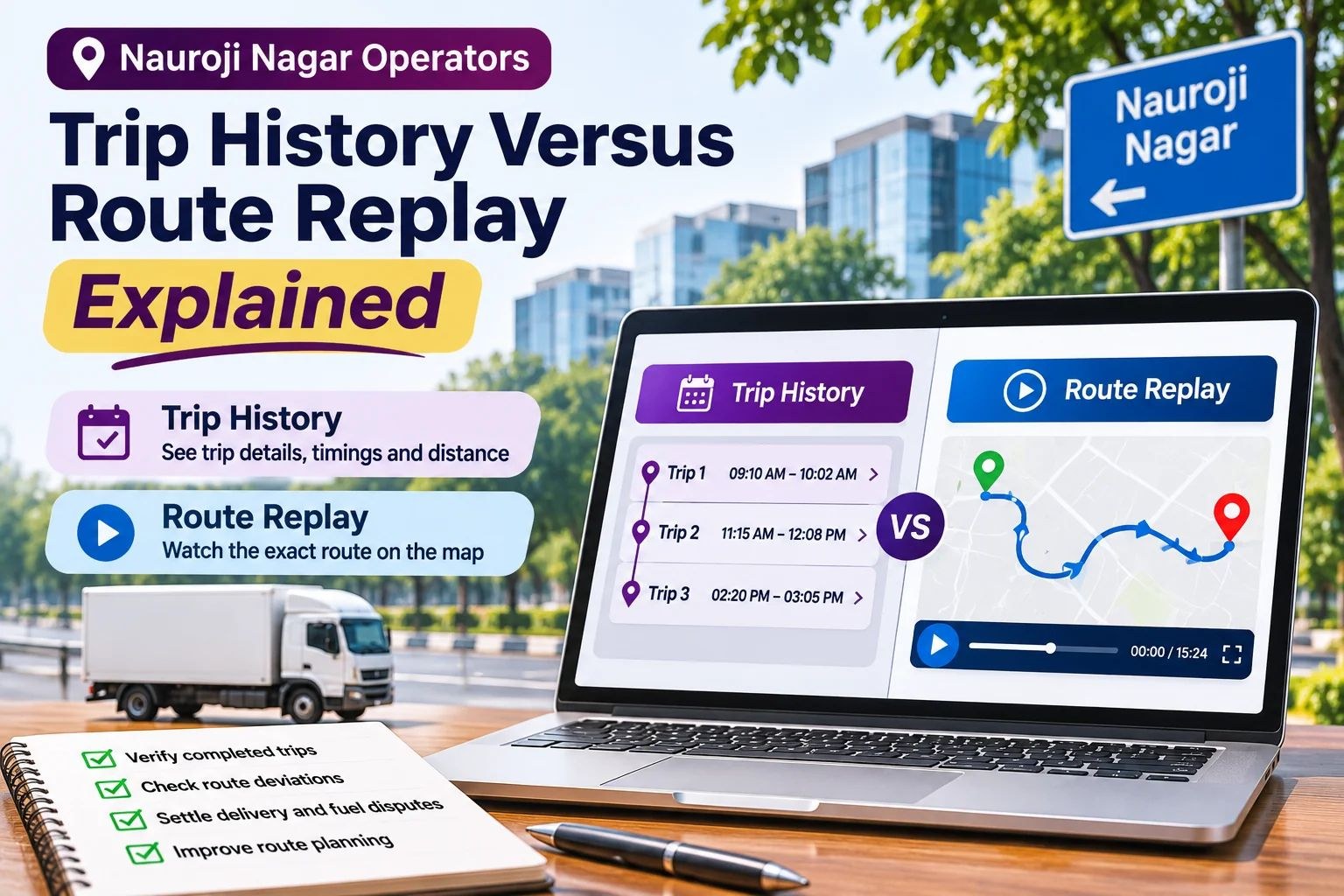
Nauroji Nagar Operators: Trip History Versus Route Replay Explained management
Trip history is the per-trip record of when a trip started and ended, how far it went, and summary figures such as speed and idle time. Route replay is the map-based redrawing of the vehicle's path over time, shown as a line you can move through. Use trip history for quick per-trip checks and route replay for route-specific questions, such as disputes and audits. Operators in Nauroji Nagar often treat the two as one tool, and that is where small delivery disagreements start to drag. india
Both are general tracking-platform views. This article explains how they typically work. It does not confirm that any specific device, sensor or integration is available, so check the official platform pages for what applies to your setup.
What trip history captures per trip
Trip history is a summary layer built on top of raw location records, so its accuracy depends on how trips are opened and closed on your platform. Settings such as ignition thresholds and stop-detection windows can change where one trip ends and the next begins. A vehicle waiting outside a customer gate with the ignition on might appear as one trip with a long idle figure, or as two trips separated by a zero-distance stop, depending on how those limits are configured. If your transport records depend on per-trip distance or duty timing, the trip record is the citable item, not the map line. Teams handling multiple vehicles usually review this view first because it sorts and exports cleanly, and the same structured fields feed reporting views in custom reports and analytics when a monthly cost review needs figures you can defend, not screenshots.
Takeaway: trip history is a ledger, so treat it as the record of what happened between two points in time.
What route replay adds on the map
Route replay answers a question trip history cannot: in what order did the vehicle visit these points, and how long did it stay at each one. Delayed geofence alerts are a common reason operators open replay at all. A marker that entered a customer site at 14:20 but raised an alert at 14:24 looks late in the list view, while the map shows the actual entry time. One device behaviour is worth knowing. Some trackers may hold location points when the cellular link drops and send them later in a batch once coverage returns. Replay might then show a clean, continuous line that was put together after the fact. Timestamps can be correct while the arrival order never appeared on the live screen. Signal jitter inside basements, tunnels and dense concrete yards can cause a similar effect on a smaller scale. No amount of scrubbing brings back positions the receiver never fixed.
Takeaway: route replay is a recording of sequence, so use it when order matters more than totals.
Choosing the right view for disputes and audits
Pick the view by the question you need to answer. A billing query about distance or trip timing is a trip-history question. A complaint about whether a vehicle actually reached a gate before a deadline is a route-replay question. Being clear on this up front saves time later.
| What trip history captures | What route replay adds |
|---|---|
| Start and end time for each trip | The drawn path, point by point, over time |
| Distance and speed summaries | Order of visits and time spent at each place |
| Idle and stop totals per trip | Where a stop happened on the map |
| Neat sorting and export for reports | A visual account for disputes and reviews |
For audits, decide in advance which view is your official record and say so in writing. Switching between them after a dispute begins weakens every claim you make. For disputes, pull both views for the same vehicle and time window before you contact anyone. If they disagree, look at the configuration first rather than the driver.
Takeaway: name one view as the official record, and reach for the other only to clear up a specific detail.
Common misreadings of both views
The first mistake is treating a summary as full detail. A trip row shows totals, not every turn, so it cannot prove a driver took a wrong route on its own. The second is treating a gap in one view as proof of tampering or theft. A jump in the replay line may indicate a stretch of poor satellite reception or a brief network dropout. It can also be a possible sign of a device uploading held points later. It is not a diagnosis by itself.
The third mistake is comparing a trip-history distance against a customer's own odometer reading and escalating a billing dispute before checking whether the trip was split by an ignition cycle mid-route. That is a likely cause in many cases, and it is worth ruling out. A longer distance in trip history does not automatically mean a longer route either. It may simply reflect a different sampling interval or a trip boundary set differently.
Finally, there is a limit worth respecting. Once your trip thresholds, stop-detection window and reporting timezone are set correctly and the data still disagrees with a physical fuel or odometer record, tuning settings has done its job. The cause may sit in the device or the uplink rather than the platform. That is the point to stop adjusting settings and start examining the hardware path with your provider.
Related Articles
GPS Fleet Management: Optimize Operations & Drive Savings | GPS Controller India fleet management market 1.91 billion USD 2026 | GPS Controller vs Trackobit which is better for Indian logistics 2026
Takeaway: before you escalate, check which view you are reading and what it can actually prove.
Practical routine for weekly review
You do not need to scrub every route by hand. A steady weekly rhythm keeps both views useful without turning review into a full-time job.
Start the week by sorting trip history for anomalies across the fleet, such as unusual idle totals, odd start times or distances that look off.
Open route replay only on the trips you flagged, not the whole fleet. Replay review takes time, so keep it focused.
When a trip record and a replay disagree, check the configuration before blaming the driver or the device.
When you see a straight-line jump on replay, check the device's offline behaviour with your provider before assuming route deviation.
Confirm which view is your official compliance record, and keep it consistent across every weekly review.
Keep the same terms, trip history and route replay, in notes and reports so the team reads the same thing.
For teams mapping this out across sites, the device-level view in all devices is where compatibility and reporting capability get checked before any of these decisions are committed. Where the review sits inside a gps controller deployment, the working order is a weekly trip-history sort for anomalies, then route replay only on what stands out. Never the reverse. As a neutral next step, consult the official platform pages and use the demo or consultation channels to confirm what applies to your fleet. No feature, date or price is promised here. This piece cites no trend, competitor or platform claims because no verified signal was supplied for this topic.
Takeaway: sort trip history first, replay only the flagged trips, and settle the record view once.
Ready to Put This Into Practice for Your Fleet?
GPS Controller supplies commercial 4G GPS trackers, fuel sensors, AI dashcams, cloud tracking software (Web, Android & iOS), and turnkey white-label reseller platforms.
Telematics & fleet technology team at GPS Controller (Sector 62, Noida, India), publishing technical guides on commercial GPS hardware, fuel monitoring, cloud fleet software, and white-label GPS platforms.
Related Telematics Guides
GPS Signal Delay Causing Fleet Tracking Failure
GPS Signal Delay Causing Fleet Tracking Failure GPS signal delay in dense urban areas and under heavy canopy cover causes fleet tracking failure by producing stale location data that does not reflect actual vehicle positions. For connected...
GPS Controller IDC AI spend 1.3 trillion 2029 fleet management core segment 2026
GPS Controller IDC AI spend 1.3 trillion 2029 fleet management core segment 2026 Fleet management in 2026 is the core segment staring down real consequences from the projected $1.3 trillion global AI spend by 2029. GPS signal delay—from inc...
GPS Controller free trial no contract setup in 10 minutes India 2026
GPS Controller free trial no contract setup in 10 minutes India 2026 Fleet managers across India are turning to the GPS Controller free trial no contract setup in 10 minutes India 2026 offer to resolve last-mile connectivity gaps without lo...
GPS Controller Real Time Ignition Engine Hours Total Movement Dashboard 2026
GPS Controller Real Time Ignition Engine Hours Total Movement Dashboard 2026 Operators relying on a GPS Controller real time dashboard for ignition engine hours compared to total movement data in 2026 are encountering persistent tracking fa...